> ## Documentation Index
> Fetch the complete documentation index at: https://docs.streambird.io/llms.txt
> Use this file to discover all available pages before exploring further.
# Implement Ethereum Wallet Authentication (e.g. Metamask)
You can easily implement an ethereum wallet based login and authentication flow with MoonKey Wallet API for wallets such as MetaMask. Alternatively, you can also use our wallet API to complement your existing authentication flow as a multi-factor authentication as shown **here**.
This example assumes that you are using the MoonKey Auth API in your backend using your MoonKey `ApiKey` that has access to your entire `App` on MoonKey.
## 1 - Implement Wallet Login UI
In this example, we will be using MetaMask; however, since all of MoonKey platform is API first, we are compatible with any wallet that can sign a message.
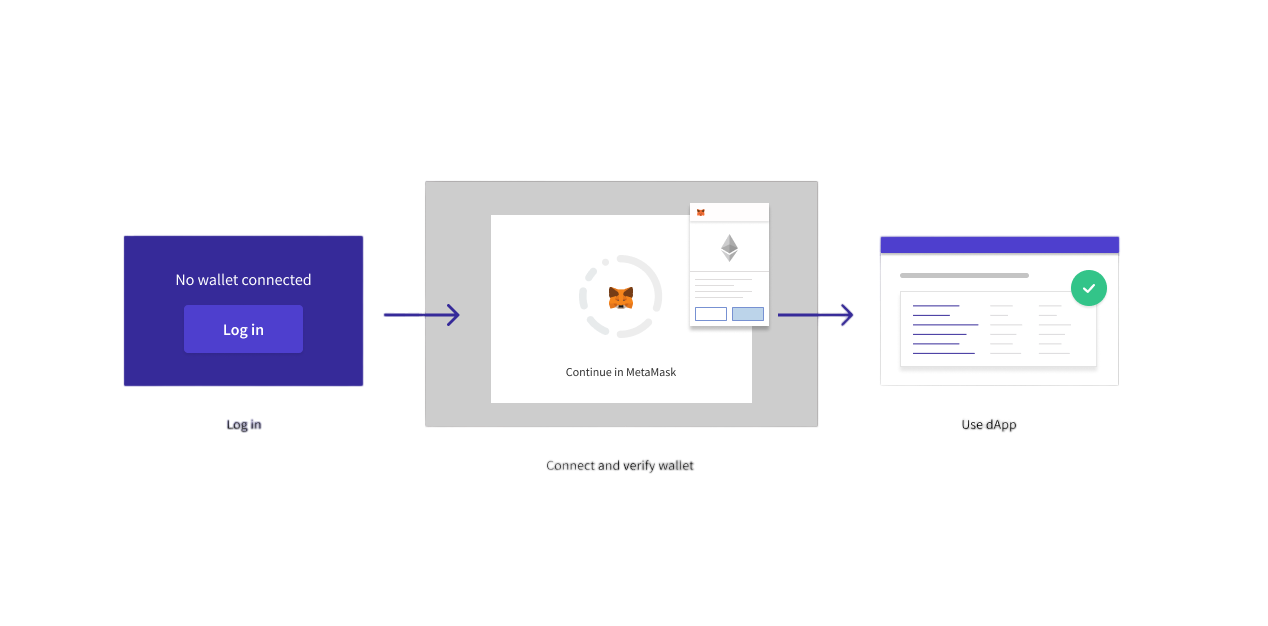
Here is the login flow we are trying to achieve where user will
* Log in
* Connect and verify wallet address
* Use app or dApp
Screen to sign in with Metamask or add a wallet to an existing account if you want to use it as a secondary factor of authentication similar to social OAuth logins like Google and Apple.
## 2 - Retrieve Wallet Address from MetaMask
Since most Ethereum users depend on MetaMask, the easiest way to retrieve the the Ethereum wallet address is via MetaMask. You can also easily check if your user has MetaMask installed by calling `window.ethereum` and ensuring that it is not undefined. If MetaMask is not installed, the many live codeblocks throughout this guide will not work.
```javascript theme={null}
const resp = await window.ethereum.request({ method: 'eth_requestAccounts' })
```
#### Live Example of Retrieving Wallet Address from MetaMask
Click on the `Connect` button to initiate a MetaMask connection and retrieve your wallet address.
```jsx Javascript theme={null}
function connectToMetaMask(props) {
const className = "flex h-9 items-center rounded-[4px] bg-primary px-4 text-sm font-bold text-white hover:text-white hover:no-underline"
const [address, setAddress] = useState("");
async function getETHAddress() {
const resp = await window.ethereum.request({ method: 'eth_requestAccounts' })
setAddress(resp[0])
}
return (
Address: {address}
);
}
```
## 3 - Register user or sign in user
Each user must be stored on MoonKey Auth, so we recommend ensuring that you store our auto generated user ID from the response into your database/backend in a column or field against that user (as long as you can associate your user with the auto generated ID returned by MoonKey).
We will ensure that each wallet address is ONLY attached to a single user at any time. We will be using the [**BeginWalletRegistration**](/api-reference/wallets-login/begin-wallet-registration) where if a user ID is sent in, we will associate it with the user if it is not already associated with another user. Otherwise, a new user will be created on the fly (aka JIT, Just in time).
```bash cURL theme={null}
curl --location --request POST 'https://api.moonkey.fun/v1/auth/wallets/registrations/begin' \
--header 'Authorization: Bearer sk_test_KJuRUZmh1XC342h1n39gH84MuSZDyD13NfhtDkaY6IfwpQA0H' \
--header 'Content-Type: application/json' \
--data-raw '{
"wallet_type": "ETH",
"public_address": "0xF7E9D631bfBd90C19691566Db4AB96697A2663C6"
}'
```
The registration request will create a `challenge` that must be signed by the wallet private key associated with the public address you are intending to register. You can use this single endpoint to handle both registration and sign in since as long as the same user ID is associated with the wallet address, you can treat it as a `LoginOrCreateUser` endpoint for ethereum wallet address.
```json JSON theme={null}
{
"id": "walletrr_24vOpv4TpCr2h7urXlV1rkwQPy7",
"app_id": "app_24ydphdixx2ydhF0E5WUFUKWNqi",
"user_id": "user_24wFP9pDa9YiMJLun94iKykoZs2",
"public_address": "0xf7e9d631bfbd90c19691566db4ab96697a2663c6",
"wallet_type": "ETH",
"challenge": "Login for My App: 5djrPeuvVwO8TAomZJCQ8uig9VeMb8eCxqgz9PIKrFY",
"updated_at": 1644507779,
"created_at": 1644507779
}
```
## 4 - Sign Wallet Challenge Message
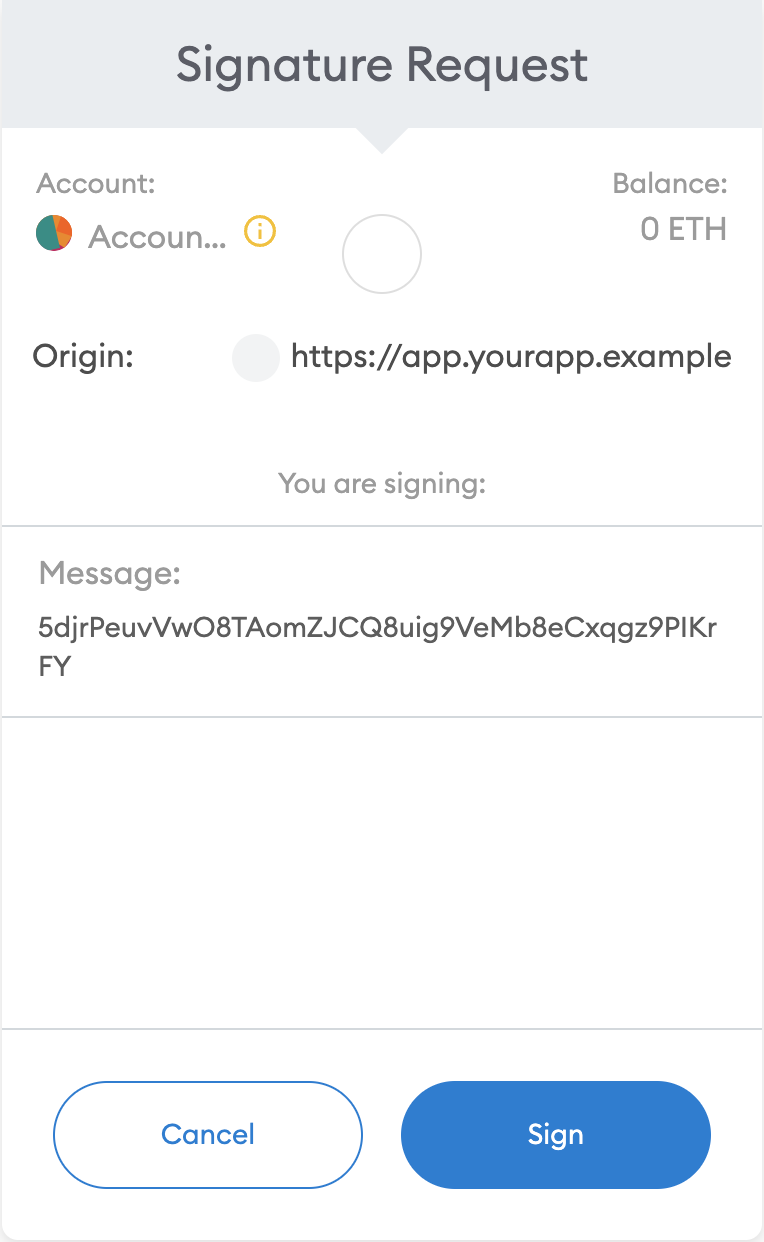
In the previous step, MoonKey will return a `challenge` for you to sign and `user_id` associated with the wallet address. If it is a new user, we recommend that you attach the `user_id` to your own user in your database.
```json JSON theme={null}
{
"id": "walletrr_24vOpv4TpCr2h7urXlV1rkwQPy7",
"app_id": "app_24ydphdixx2ydhF0E5WUFUKWNqi",
"user_id": "user_24wFP9pDa9YiMJLun94iKykoZs2",
"public_address": "0xf7e9d631bfbd90c19691566db4ab96697a2663c6",
"wallet_type": "ETH",
"challenge": "Login for My App: 5djrPeuvVwO8TAomZJCQ8uig9VeMb8eCxqgz9PIKrFY",
"updated_at": 1644507779,
"created_at": 1644507779
}
```
You can now choose any ethereum compatible wallet to sign this message. In this example, we will be using MetaMask as shown below. Here are some great resources from MetaMask for your convenience to [**get started**](https://docs.metamask.io/guide/getting-started.html) and learning more about [**signing**](https://docs.metamask.io/guide/signing-data.html#signing-data-with-metamask).
```javascript Javascript theme={null}
// This challenge should be retrieved from the
// BeginWalletRegistration API request at /v1/auth/wallets/registrations/begin
const challenge = 'Login for My App: 5djrPeuvVwO8TAomZJCQ8uig9VeMb8eCxqgz9PIKrFY'
const signature = await window.ethereum.request({"method": "personal_sign", "params": [challenge, address]})
```
To begin development with our API without building your own MetaMask integration, you can use `mycrypto.com` to easily trigger a MetaMask signing of your challenge [here](https://app.mycrypto.com/sign-message), choose `MetaMask`, then paste in the challenge. Once signed by MetaMask, use the `sig` field in the JSON to continue with this tutorial. For your convenience, you can also use our live codeblock below and simply replace the message with your own challenge message.
#### Full Live Example of Login to MetaMask with Message Signing
```jsx Javascript theme={null}
function connectToMetaMask(props) {
const className = "flex h-9 items-center rounded-[4px] bg-primary px-4 text-sm font-bold text-white hover:text-white hover:no-underline"
const [address, setAddress] = useState("");
const [signature, setSignature] = useState("");
async function getETHAddress() {
const resp = await window.ethereum.request({ method: 'eth_requestAccounts' })
setAddress(resp[0])
return resp[0]
}
async function signETHChallenge(ethAddress) {
const challenge = 'Login for My App: 5djrPeuvVwO8TAomZJCQ8uig9VeMb8eCxqgz9PIKrFY'
const signature = await window.ethereum.request({"method": "personal_sign", "params": [challenge, ethAddress]})
setSignature(signature)
}
async function loginWithMetaMask() {
const ethAddress = await getETHAddress()
await signETHChallenge(ethAddress)
}
return (
Address: {address}
Signature: {signature}
);
}
```
## 5 - Verify Wallet Registration
Once you have signed your `challenge`, you need to send the `signature`, `wallet_type`, and the `public_address` of the wallet you are verifying to the [**VerifyWalletRegistration**](/api-reference/wallets-login/verify-siwe-wallet-registration) endpoint.
```bash cURL theme={null}
curl --location --request POST 'https://api.moonkey.fun/v1/auth/wallets/verify' \
--header 'Authorization: Bearer sk_test_KJuRUZmh1XC342h1n39gH84MuSZDyD13NfhtDkaY6IfwpQA0H' \
--header 'Content-Type: application/json' \
--data-raw '{
"wallet_type": "ETH",
"signature": "0xb27c94381c930151c4823fd4b7f0b45d700f0c9d30a7b98821413e07eef7604319a1dbc28dda881d0fc8d18b08aceeeb0fcdb80d6caec6f6e9901800c43894c31b",
"public_address": "0xF7E9D631bfBd90C19691566Db4AB96697A2663C6"
}'
```
You will receive a success response like the following
```json JSON theme={null}
{
"id": "wallet_24tdfcVDSJQpK5huDnZaqPP2aiI",
"user_id": "user_24wFP9pDa9YiMJLun94iKykoZs2",
"public_address": "0xf7e9d631bfbd90c19691566db4ab96697a2663c6",
"wallet_type": "ETH",
"is_default": false,
"is_ready_only": true,
"is_imported": true,
"updated_at": 1644453920,
"created_at": 1644453920
}
```
Now you can choose to resume to your existing login flow and issue a session token for this user.
Optionally, if you want to use MoonKey's Session management, you can request MoonKey to issue you a session token in the [**VerifyWalletRegistration**](/api-reference/wallets-login/verify-siwe-wallet-registration) step by sending in a `session_expires_in` parameter like the following.
```bash cURL theme={null}
curl --location --request POST 'https://api.moonkey.fun/v1/auth/wallets/verify' \
--header 'Authorization: Bearer sk_test_KJuRUZmh1XC342h1n39gH84MuSZDyD13NfhtDkaY6IfwpQA0H' \
--header 'Content-Type: application/json' \
--data-raw '{
"wallet_type": "ETH",
"signature": "0xb27c94381c930151c4823fd4b7f0b45d700f0c9d30a7b98821413e07eef7604319a1dbc28dda881d0fc8d18b08aceeeb0fcdb80d6caec6f6e9901800c43894c31b",
"public_address": "0xF7E9D631bfBd90C19691566Db4AB96697A2663C6",
"session_expires_in": 1440
}'
```
A successful response will contain a `session` object with `session_token` and `session_jwt` like the following response. Your can read more about **Session management here** on how to leverage MoonKey's Session management for multifactor authentication flow.
```json JSON theme={null}
{
"id": "wallet_24tdfcVDSJQpK5huDnZaqPP2aiI",
"user_id": "user_24wFP9pDa9YiMJLun94iKykoZs2",
"public_address": "0xf7e9d631bfbd90c19691566db4ab96697a2663c6",
"wallet_type": "ETH",
"is_default": false,
"is_ready_only": true,
"is_imported": true,
"updated_at": 1644453920,
"created_at": 1644453920,
"session": {
"id": "sess_27J1dmNukyXQmFY8267WYIcVyAw",
"user_id": "user_24wFP9pDa9YiMJLun94iKykoZs2",
"session_token": "T2X6u67k73o8LRPBUj10gjiLtTnGxiWby8Gj94wUAKGNisPmQc1ZeZTQDMhDnhWS",
"started_at": 1644453920,
"expires_at": 1649083464,
"last_active_at": 1644453920,
"factors": [
{
"delivery_channel": "eth_wallet",
"type": "wallet",
"method": {
"method_id": "wallet_24tdfcVDSJQpK5huDnZaqPP2aiI",
"method_type": "wallet",
"wallet_public_address": "0xf7e9d631bfbd90c19691566db4ab96697a2663c6",
"wallet_type": "ETH",
"wallet_id": "wallet_24tdfcVDSJQpK5huDnZaqPP2aiI",
"last_verified_at": 1649023464
}
}
],
"device_fingerprint": {
"user_agent": "",
"ip": ""
},
"updated_at": 1644453920,
"created_at": 1644453920
},
"session_token": "T2X6u67k73o8LRPBUj10gjiLtTnGxiWby8Gj94wUAKGNisPmQc1ZeZTQDMhDnhWS",
"session_jwt": "eyJhbGciOiJSUzI1NiIsImtpZCI6Imp3a18y..."
}
```
In the case where the signature is invalid, we will return
```json JSON theme={null}
{
"status_code": 400,
"error_message": "Invalid signature, signature missing or invalid.",
"error_type": "invalid_wallet_signature"
}
```
You can return or display this error to your user via your API or application.
Congrats! You have now integrated ethereum login into your application without building and maintaining additional infrastructures to manage your Web3 credentials. Let us take care of authentication and you can focus on your core product.
 Screen to sign in with Metamask or add a wallet to an existing account if you want to use it as a secondary factor of authentication similar to social OAuth logins like Google and Apple.
 ## 2 - Retrieve Wallet Address from MetaMask
Since most Ethereum users depend on MetaMask, the easiest way to retrieve the the Ethereum wallet address is via MetaMask. You can also easily check if your user has MetaMask installed by calling `window.ethereum` and ensuring that it is not undefined. If MetaMask is not installed, the many live codeblocks throughout this guide will not work.
```javascript theme={null}
const resp = await window.ethereum.request({ method: 'eth_requestAccounts' })
```
#### Live Example of Retrieving Wallet Address from MetaMask
Click on the `Connect` button to initiate a MetaMask connection and retrieve your wallet address.
```jsx Javascript theme={null}
function connectToMetaMask(props) {
const className = "flex h-9 items-center rounded-[4px] bg-primary px-4 text-sm font-bold text-white hover:text-white hover:no-underline"
const [address, setAddress] = useState("");
async function getETHAddress() {
const resp = await window.ethereum.request({ method: 'eth_requestAccounts' })
setAddress(resp[0])
}
return (
## 2 - Retrieve Wallet Address from MetaMask
Since most Ethereum users depend on MetaMask, the easiest way to retrieve the the Ethereum wallet address is via MetaMask. You can also easily check if your user has MetaMask installed by calling `window.ethereum` and ensuring that it is not undefined. If MetaMask is not installed, the many live codeblocks throughout this guide will not work.
```javascript theme={null}
const resp = await window.ethereum.request({ method: 'eth_requestAccounts' })
```
#### Live Example of Retrieving Wallet Address from MetaMask
Click on the `Connect` button to initiate a MetaMask connection and retrieve your wallet address.
```jsx Javascript theme={null}
function connectToMetaMask(props) {
const className = "flex h-9 items-center rounded-[4px] bg-primary px-4 text-sm font-bold text-white hover:text-white hover:no-underline"
const [address, setAddress] = useState("");
async function getETHAddress() {
const resp = await window.ethereum.request({ method: 'eth_requestAccounts' })
setAddress(resp[0])
}
return (