> ## Documentation Index
> Fetch the complete documentation index at: https://docs.streambird.io/llms.txt
> Use this file to discover all available pages before exploring further.
# Integrate Google OAuth
You can easily integrate with MoonKey Auth OAuth flow for your user login/register without managing things like Google OAuth Integration.
## 1 - Setup Google OAuth Connection
In order to integrate with Google OAuth flow, you will first need to setup your Google OAuth Connection via the MoonKey Portal. You will have to create an Google Cloud Project and create an OAuth app in order to retrieve Client ID and Client Secret. You can follow the guide in the OAuth Connection section for Google.
## 2 - Configure Redirect URLs
Once your Google OAuth Connection is created and configured, you will need to ensure that you create Redirect URLs for `login` and `registration`. This redirect url will be used once the OAuth Provider calls the MoonKey Callback URL we provided to you during the OAuth Connection setup.
For security reasons, we only allow you to use redirect URL preconfigured with MoonKey to ensure that we redirect your users to `redirect_urls` you whitelisted with us once we receive the callback request from the OAuth Provider.
## 3 - Begin Google OAuth flow
With your OAuth Connection and Redirect URLs properly setup, you can start embedding the response from the following request into your UI (typically a **"Login with Google"** button).
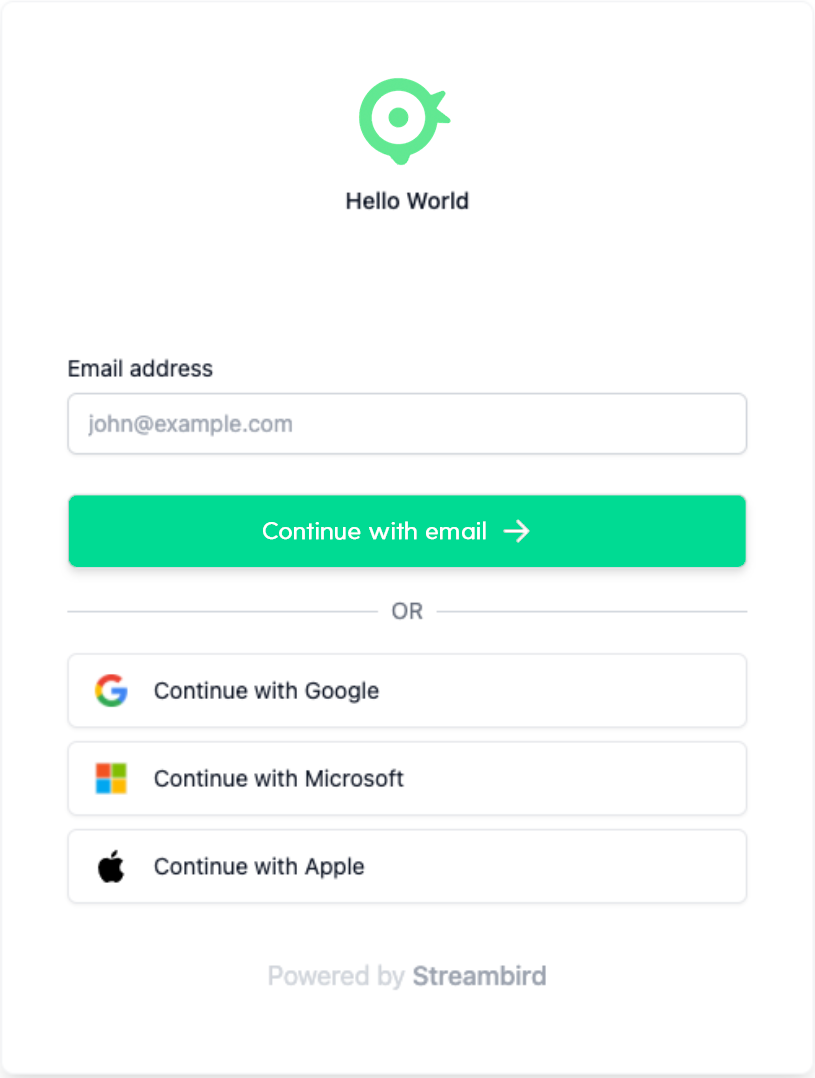
In this example, we assume you are calling MoonKey Auth API from your client-side via our SDK or your custom frontend Api Client. We will be using your PublicToken, which is publishable.
```bash theme={null}
https://api.moonkey.fun/v1/auth/oauth/google/begin?public_token={{public_token}}&redirect=true
```
With the `redirect=true` parameter, we allow you to embed a single static URL for your button and MoonKey API will automatically redirect the browser to the generated OAuth Login URL for the OAuth provider. For example
```
https://accounts.google.com/o/oauth2/auth/oauthchooseaccount?access_type=offline&client_id=1008100163226-56ujvvb72rat1rieggmi1kqepqpsjdsn.apps.googleusercontent.com&redirect_uri=http%3A%2F%2Flocalhost%3A11019%2Fv1%2Fauth%2Foauth%2Fcallback%2F6e7c9f1b-5e66-400c-99a7-783411e03aac&response_type=code&scope=openid%20email%20profile&state=google-eEQJNqnJcyvHwGxLmaf8URLElSHcYYzEsZMrXJnEoWufiOiZotcNT7YY4ZzUwUvq&flowName=GeneralOAuthFlow
```
#### Optional: Handle your own redirect
Optionally, if you prefer to retrieve the `redirect_url` yourself and handle the redirect in your own frontend logic, do the following
```bash cURL theme={null}
curl --location -g --request GET 'https://api.moonkey.fun/v1/auth/oauth/google/begin?public_token={{public_token}}'
```
If successful, the response will contain a `redirect_url` that you can use to initiate the Google OAuth flow.
```json JSON theme={null}
{
"redirect_url": "https://accounts.google.com/o/oauth2/auth/oauthchooseaccount?access_type=offline&client_id=1008100163226-56ujvvb72rat1rieggmi1kqepqpsjdsn.apps.googleusercontent.com&redirect_uri=http%3A%2F%2Flocalhost%3A11019%2Fv1%2Fauth%2Foauth%2Fcallback%2F6e7c9f1b-5e66-400c-99a7-783411e03aac&response_type=code&scope=openid%20email%20profile&state=google-eEQJNqnJcyvHwGxLmaf8URLElSHcYYzEsZMrXJnEoWufiOiZotcNT7YY4ZzUwUvq&flowName=GeneralOAuthFlow"
}
```
Embed this `redirect_url` into any button that initiates a Google OAuth flow.
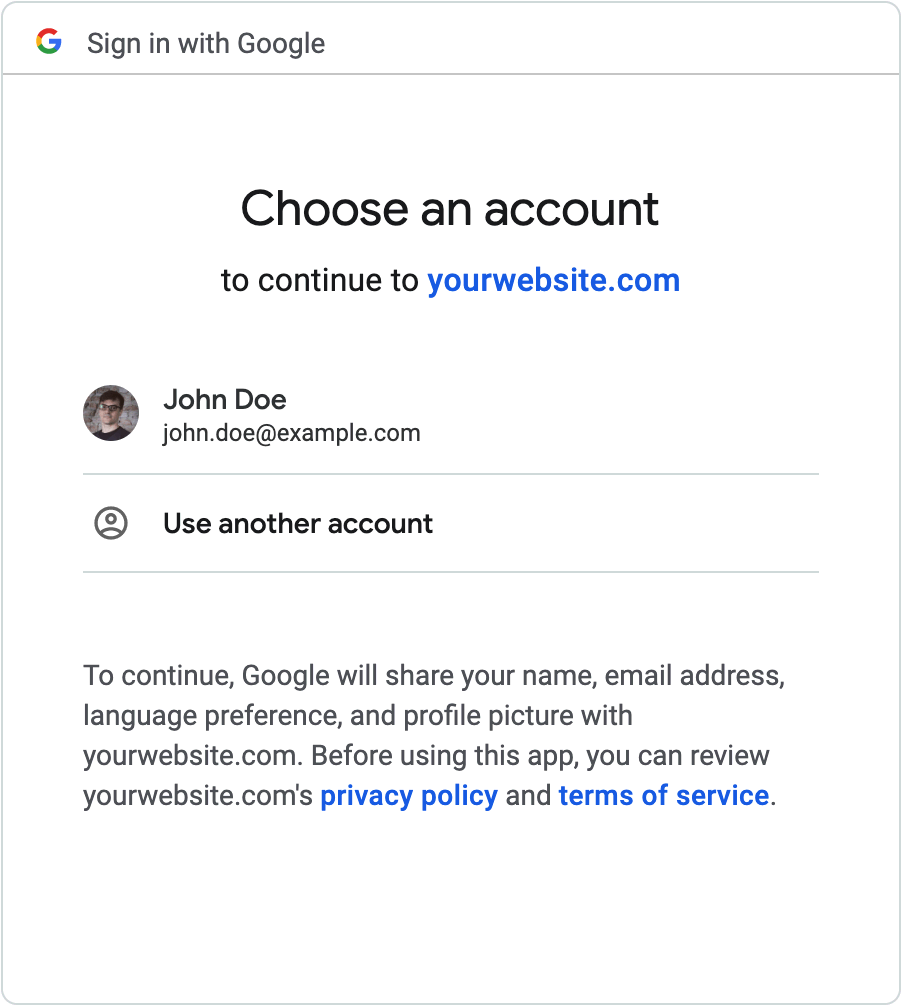
Once the Google OAuth flow has begun, the user will see the Google login screen like below.
 ## 4 - Verify OAuth Request
Once the OAuth login is successful, the OAuth Provider will first make a request to our callback URL in the MoonKey Auth API (the one you pasted in while setting up the OAuth application with Google). Once the MoonKey Auth API callback verified the user information, we will redirect the user to either the `registration` or `login` Redirect URL you setup depending on whether it is a new user or an existing user on the MoonKey Platform under your App.
Once you have extracted the token generated by MoonKey in your Redirect URL, verify the token against MoonKey Auth API like below.
In this example, we assume you are calling MoonKey Auth API from your backend/server side. Please ensure that you NEVER expose your `ApiKey`
```bash cURL theme={null}
curl --location -g --request POST 'https://api.moonkey.fun/v1/auth/oauth/verify' \
--header 'Authorization: Bearer sk_test_KJuRUZmh1XC342h1n39gH84MuSZDyD13NfhtDkaY6IfwpQA0H' \
--data-raw '{
"token": "b79KRfPMHJnNLE2er42GBDqto5bBl7LpRMXegYIbh7hRxe2sRGFu8JD3szqrMLpA"
}'
```
A successfully response will return an `OAuthSession` object with provided info from the idp (identity provider) and also the internal MoonKey `user_id` (see example response below).
```json JSON theme={null}
{
"provider_subject": "100157402424066154830",
"provider": "google",
"user_id": "user_24wFP9pDa9YiMJLun94iKykoZs2",
"idp_session": {
"idp": {
"access_token": "ya29.A0ARrdaM9TnNfrdqDZmBIw7PBPjYf0HELFdxDCNC2cQRK7aqgsIfIusuCd0SJ5nx9dgGti2KU-rt_dIV7cpxasqpCpRq7VNyv-KsbC2-cn6j76p_wVmUwCKlWZ_3ZHx8WFdlIrLu-E1q3Ea_11zfmQCBMl",
"refresh_token": "1//0d2jmQJmy0z17CgYIARAAGA0SNwF-L9IrF-jEvfwE-YNr_--Cqzu7MGnmLu0kklcFfgJzI2FSBib9_4wh1MAs4JKbAvue2XJoI"
}
},
"session": null,
"session_token": ""
}
```
Optionally, if you want to use MoonKey's Session management, you can request MoonKey to issue you a session token in the [**VerifyOAuthToken**](/api-reference/oauth/verify-token) step by sending in a `session_expires_in` parameter like the following.
```bash cURL theme={null}
curl --location -g --request POST 'https://api.moonkey.fun/v1/auth/oauth/verify' \
--header 'Authorization: Bearer sk_test_KJuRUZmh1XC342h1n39gH84MuSZDyD13NfhtDkaY6IfwpQA0H' \
--data-raw '{
"token": "b79KRfPMHJnNLE2er42GBDqto5bBl7LpRMXegYIbh7hRxe2sRGFu8JD3szqrMLpA",
"session_expires_in": 1440
}'
```
A successful response will contain a `session` object with `session_token` and `session_jwt` like the following response. Your can read more about **Session management here** on how to leverage MoonKey's Session management for multifactor authentication flow.
We recommend ensuring that you store our auto generated User ID from the response into your database/backend in a column or field against that user (as long as you can associate your user with the auto generated ID returned by MoonKey). MoonKey will ensure that each email is ONLY attached to a single user at any time.
If you have previously associated our MoonKey `user_id` with your users in your app, you are now done and you can safely authenticate the user by issuing a valid session or a JWT token!
However, if you have not previously attached the `user_id` to your users table for example, you can also use our `GetIdentityUser` endpoint to retrieve the `emails` and `phone_numbers` attached to the user using the `user_id` returned.
```bash cURL theme={null}
curl --location --request GET 'https://api.moonkey.fun/v1/auth/users/user_24wFP9pDa9YiMJLun94iKykoZs2' \
--header 'Authorization: Bearer sk_test_KJuRUZmh1XC342h1n39gH84MuSZDyD13NfhtDkaY6IfwpQA0H'
```
and expect a sample response like below,
```json JSON theme={null}
{
"user_id": "user_24wFP9pDa9YiMJLun94iKykoZs2",
"app_id": "app_24ydphdixx2ydhF0E5WUFUKWNqi",
"first_name": "John",
"middle_name": "",
"last_name": "Smith",
"active": false,
"updated_at": 1627081626,
"created_at": 1627081626,
"emails": [
{
"id": "email_24oXBL3PufzHkH1Jzyjc2EXYeo7",
"verified": true,
"email": "johnsmith@example.com",
"updated_at": 1627081626,
"created_at": 1627081626
}
],
"phone_numbers": [
{
"id": "pn_24oXBLRv6BoHXbNZoTAZkAFlRsy",
"verified": false,
"phone_number": "+14152222222",
"updated_at": 1627081626,
"created_at": 1627081626
}
]
}
```
Now, with the email or other identification info you want to rely on, you can attach the `user_id` from MoonKey to your User entry in your own database and issue a valid session or JWT token or if you are using MoonKey session management, return our `session_token` or `session_jwt`.
## 4 - Verify OAuth Request
Once the OAuth login is successful, the OAuth Provider will first make a request to our callback URL in the MoonKey Auth API (the one you pasted in while setting up the OAuth application with Google). Once the MoonKey Auth API callback verified the user information, we will redirect the user to either the `registration` or `login` Redirect URL you setup depending on whether it is a new user or an existing user on the MoonKey Platform under your App.
Once you have extracted the token generated by MoonKey in your Redirect URL, verify the token against MoonKey Auth API like below.
In this example, we assume you are calling MoonKey Auth API from your backend/server side. Please ensure that you NEVER expose your `ApiKey`
```bash cURL theme={null}
curl --location -g --request POST 'https://api.moonkey.fun/v1/auth/oauth/verify' \
--header 'Authorization: Bearer sk_test_KJuRUZmh1XC342h1n39gH84MuSZDyD13NfhtDkaY6IfwpQA0H' \
--data-raw '{
"token": "b79KRfPMHJnNLE2er42GBDqto5bBl7LpRMXegYIbh7hRxe2sRGFu8JD3szqrMLpA"
}'
```
A successfully response will return an `OAuthSession` object with provided info from the idp (identity provider) and also the internal MoonKey `user_id` (see example response below).
```json JSON theme={null}
{
"provider_subject": "100157402424066154830",
"provider": "google",
"user_id": "user_24wFP9pDa9YiMJLun94iKykoZs2",
"idp_session": {
"idp": {
"access_token": "ya29.A0ARrdaM9TnNfrdqDZmBIw7PBPjYf0HELFdxDCNC2cQRK7aqgsIfIusuCd0SJ5nx9dgGti2KU-rt_dIV7cpxasqpCpRq7VNyv-KsbC2-cn6j76p_wVmUwCKlWZ_3ZHx8WFdlIrLu-E1q3Ea_11zfmQCBMl",
"refresh_token": "1//0d2jmQJmy0z17CgYIARAAGA0SNwF-L9IrF-jEvfwE-YNr_--Cqzu7MGnmLu0kklcFfgJzI2FSBib9_4wh1MAs4JKbAvue2XJoI"
}
},
"session": null,
"session_token": ""
}
```
Optionally, if you want to use MoonKey's Session management, you can request MoonKey to issue you a session token in the [**VerifyOAuthToken**](/api-reference/oauth/verify-token) step by sending in a `session_expires_in` parameter like the following.
```bash cURL theme={null}
curl --location -g --request POST 'https://api.moonkey.fun/v1/auth/oauth/verify' \
--header 'Authorization: Bearer sk_test_KJuRUZmh1XC342h1n39gH84MuSZDyD13NfhtDkaY6IfwpQA0H' \
--data-raw '{
"token": "b79KRfPMHJnNLE2er42GBDqto5bBl7LpRMXegYIbh7hRxe2sRGFu8JD3szqrMLpA",
"session_expires_in": 1440
}'
```
A successful response will contain a `session` object with `session_token` and `session_jwt` like the following response. Your can read more about **Session management here** on how to leverage MoonKey's Session management for multifactor authentication flow.
We recommend ensuring that you store our auto generated User ID from the response into your database/backend in a column or field against that user (as long as you can associate your user with the auto generated ID returned by MoonKey). MoonKey will ensure that each email is ONLY attached to a single user at any time.
If you have previously associated our MoonKey `user_id` with your users in your app, you are now done and you can safely authenticate the user by issuing a valid session or a JWT token!
However, if you have not previously attached the `user_id` to your users table for example, you can also use our `GetIdentityUser` endpoint to retrieve the `emails` and `phone_numbers` attached to the user using the `user_id` returned.
```bash cURL theme={null}
curl --location --request GET 'https://api.moonkey.fun/v1/auth/users/user_24wFP9pDa9YiMJLun94iKykoZs2' \
--header 'Authorization: Bearer sk_test_KJuRUZmh1XC342h1n39gH84MuSZDyD13NfhtDkaY6IfwpQA0H'
```
and expect a sample response like below,
```json JSON theme={null}
{
"user_id": "user_24wFP9pDa9YiMJLun94iKykoZs2",
"app_id": "app_24ydphdixx2ydhF0E5WUFUKWNqi",
"first_name": "John",
"middle_name": "",
"last_name": "Smith",
"active": false,
"updated_at": 1627081626,
"created_at": 1627081626,
"emails": [
{
"id": "email_24oXBL3PufzHkH1Jzyjc2EXYeo7",
"verified": true,
"email": "johnsmith@example.com",
"updated_at": 1627081626,
"created_at": 1627081626
}
],
"phone_numbers": [
{
"id": "pn_24oXBLRv6BoHXbNZoTAZkAFlRsy",
"verified": false,
"phone_number": "+14152222222",
"updated_at": 1627081626,
"created_at": 1627081626
}
]
}
```
Now, with the email or other identification info you want to rely on, you can attach the `user_id` from MoonKey to your User entry in your own database and issue a valid session or JWT token or if you are using MoonKey session management, return our `session_token` or `session_jwt`.